New request
Open new request
Select "New Request":

button for new request
Select "HTTP":
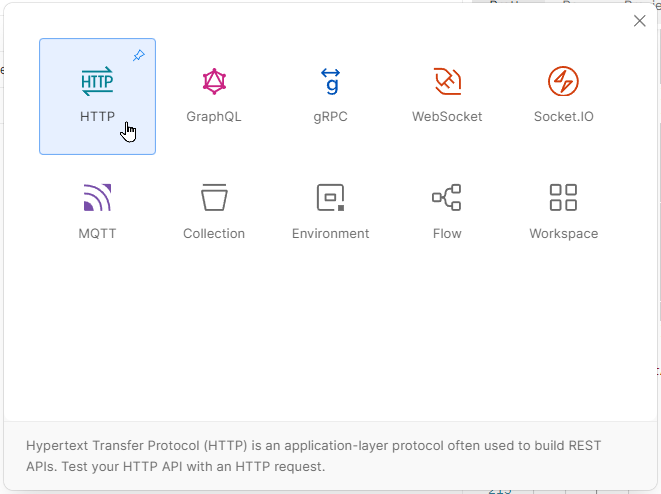
button for new http request
Now we see the window of new request.
button for new http request
Let configure it!
Configure request
Let's say we want to check the list of existing objects (probably as dimensions) in Rivile. For example, let's get a list of some purchase objects.
Get instruction from Rivile official documentation site
To start, we find a necessary instructions at documentation page:
Rivile API v2: GET_N06_LISTNow we can start build a request.
URL and Method
Fistly we need to know Rivile API address. Usually it always be the same:
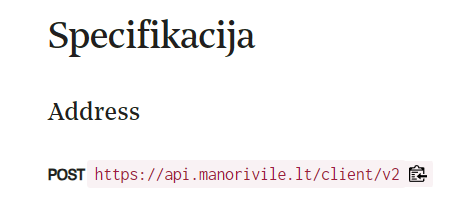
address of Rivile API
We see that we need to use command POST with URL https://api.manorivile.lt/client/v2
In Postman you should change command GET to POST and copy url into address bar:
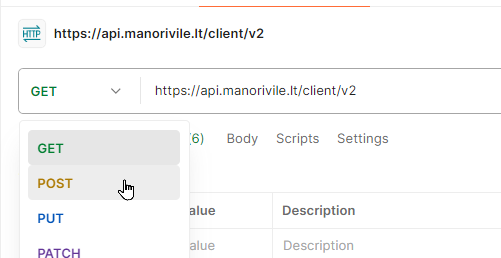
changing method parameter GET to POST
Headers
Next thing we need to do is to configure headers of request. Instruction gives us following information:
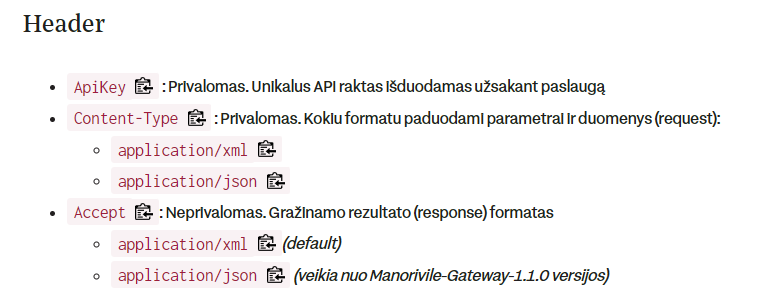
description of headers of request
Let transfer these settings to Postman:
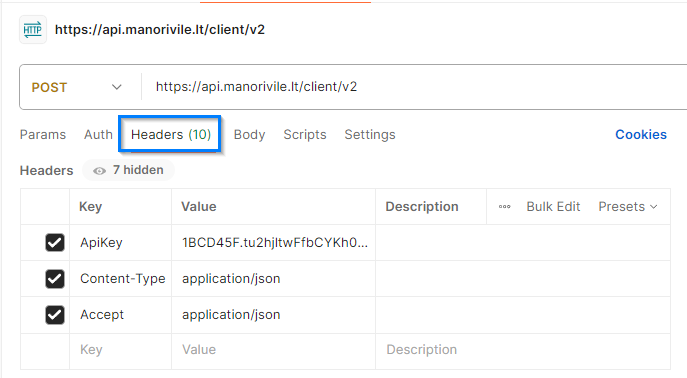
configured headers will look like this
- ApiKey - unique key that you should get from client
- Content-Type - we should specify, which format we will send (JSON or XML). Vecticum uses JSON
- Accept - we should specify if we want to get JSON or XML as a result. At Vecticum we use JSON
P.S. These settings usually will be always the same for any request to Rivile. To save your time, you can save your request and duplicate it for future request to avoid filling the same information again and again. Of course, it's always a good idea to double-check these settings when starting a new request.
Body
After URL and Headers are done, we should generate request data, what we want to get. Body contains:
- method - what we want to do. For our example, it will be GET_N06_LIST
- params - here we can specify further instructions, for example add filter
Rivile explanation:
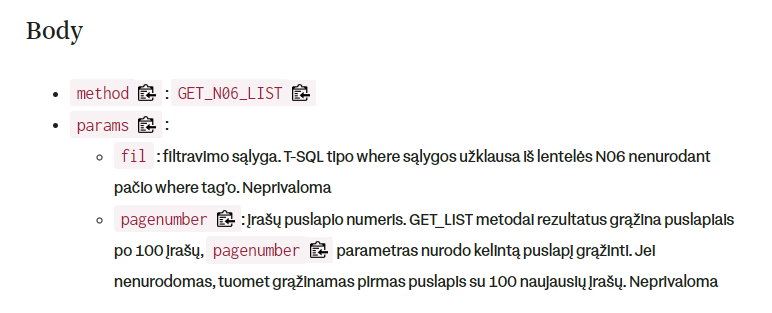
Let's scroll down Rivile instructions and find an example:

Navigate to next tab called Body, select raw instead of none and copy-paste body example:
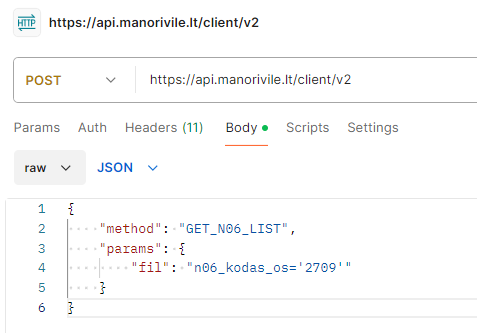
Request is configured. Press "Send" button and you should get result.
If you done everything correctly, probably you will get empty result:

empty results when configuration is good
We can see that above the result we see status message - 200 OK. Code 200 means that request was successful. To get results of first 100 records, just remove the filter and keep body simple:
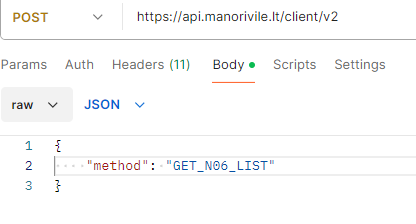
Errors possible
In case you got Error code and code is not 200, possible problems can be:
- Method is wrong
- API key is bad
- API user don't have necessary rights
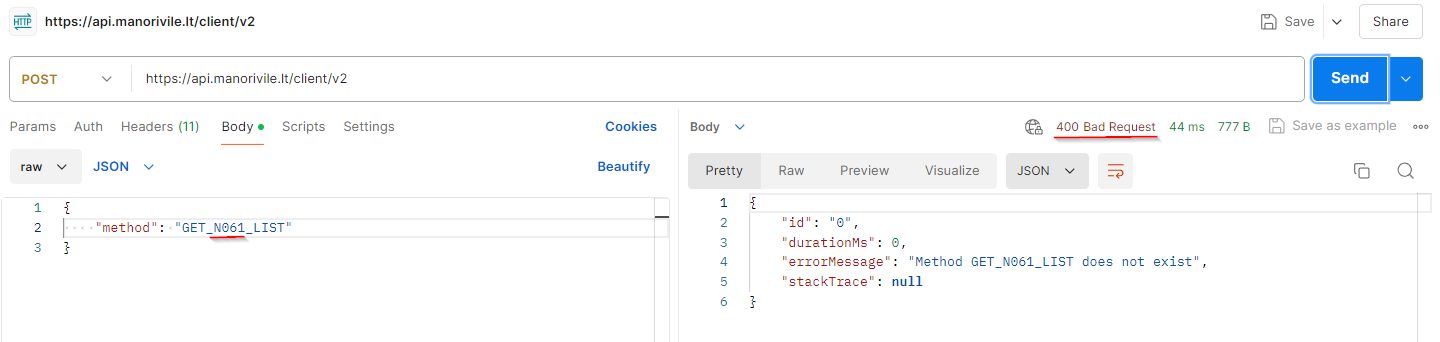
In this case just check if you typed method correctly
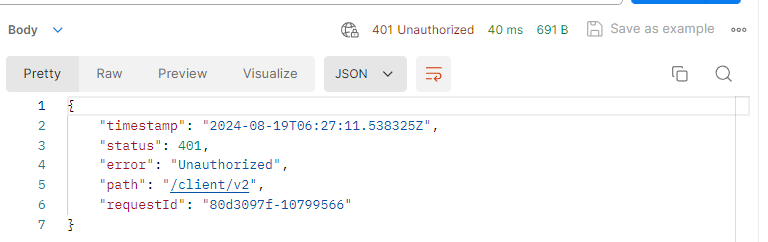
Probably there is a extra space in API key or someone gave you wrong API Key
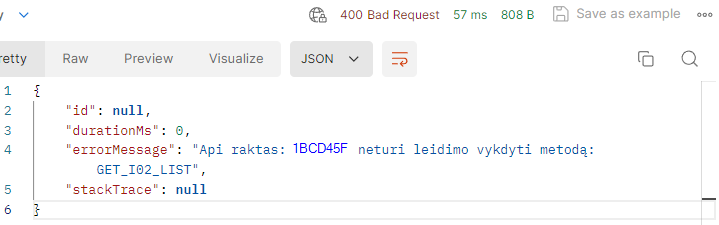
Current API user don't have rights to execute this method. Probably this is the wrong method that you don't need or client should give an access to API user for the method.