Navigation Items
Navigation items are menu items that when opened display lists of object data that is displayed in a table format or in other specialized formats. Navigation items are created in Apps.
To create a new navigation item, select New Navigation Item.
| Setting | Description |
|---|---|
| Label | Name of the navigation item. This name will appear in the menu. |
| Navigation type | Choose what will be displayed when a navigation item is opened.
|
| Is top level item | Choose to show the navigation item at the app level. |
| Dashboard | Choose which dashboard to show in the view. |
| Show 'New' button | Active to let the user create new documents in the view. |
| ID | Id of document that will be opened by this navigation item. |
| Object type | Object type that will be opened by this navigation item. See more in Object Types. |
| Class or classes | Class or classes that will be opened by this navigation item. See more in Classes. |
| View | View of objects that will be displayed when this navigation item is selected. See more in Views. |
| Route | A route to another location of the system. For details, please contact system administrator. |
| Route params | Parameters that change the destination or view features. |
| Order | Sequence number of the navigation item (1st, 2nd etc). |
| Visible for roles | Specify roles which will be able to access this navigation item. You can create dedicated app roles (see below) or use existing one. Important. Note that if no role is set here, no one will be able to see the navigation item in the menu. |
Type - View
A view is a list of objects in a table format. You can define which object and or a subset of the objects classes will be displayed in the list.
Type - Feature
For navigation items of the type "Feature" only the route field is required. The system navigates to the entered route. Examples of routes:
- /sodra-import - opens the window for data import from sodra
- /hr/orgtree - opens the interactive organization chart
- /hr/reports - lets user select from four HR reports: "Diversity Report", 'Remaining vacation days", "Transfer of remaining vacation days", "Starters, Variations & Leavers"
- /scheduler/worktime - opens the worktime scheduler calendar function
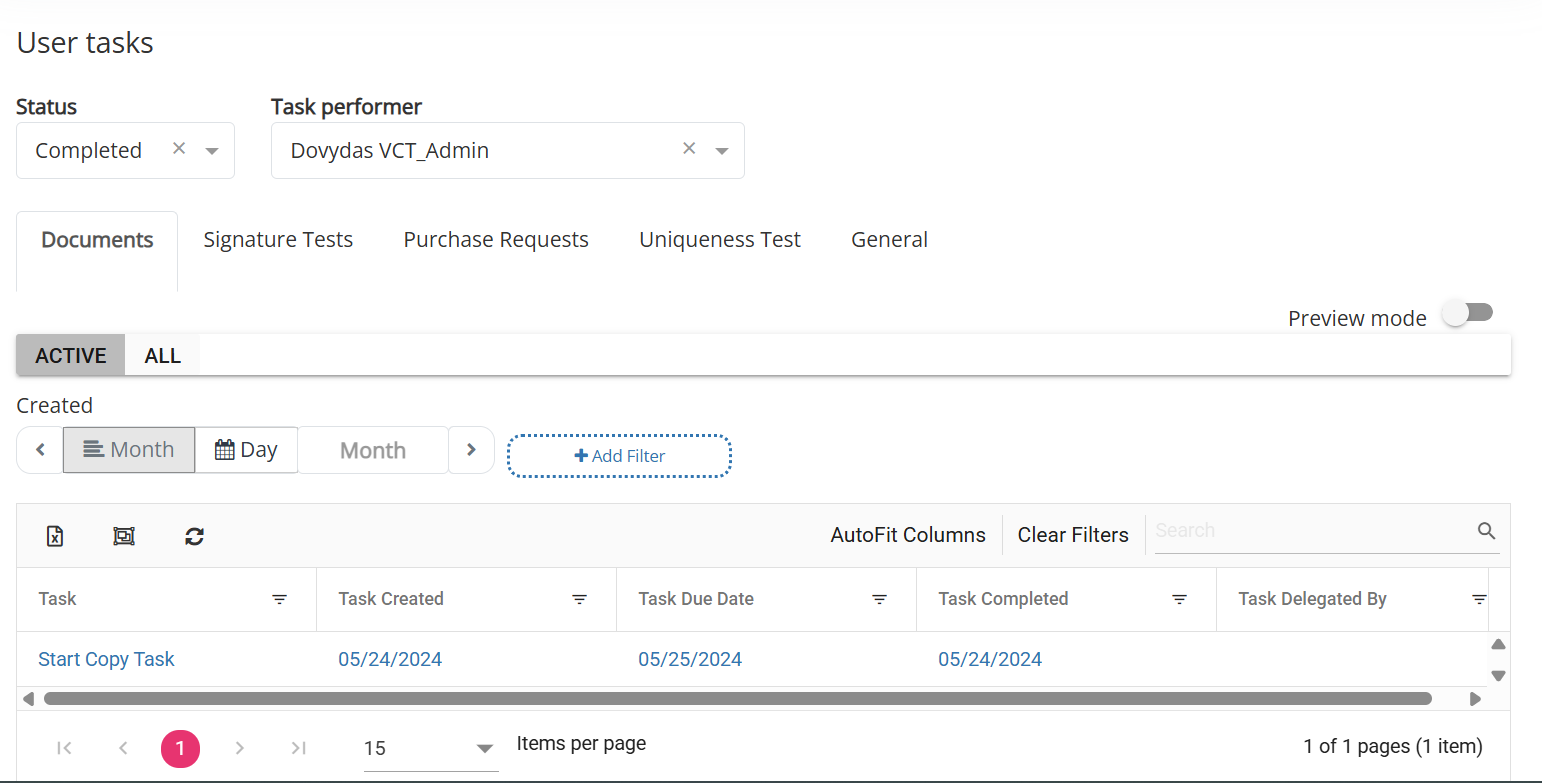
- /tasks/all - opens the User tasks view
Feature views
User tasks
The view shows all tasks that belong to the selected user. The view sorts all tasks into their associated classes and the user can click on the class name (tab) to view all tasks for that class. If a user has the role "Company task read rights" or "Company administrator", the user can change the chosen task performer, otherwise the user can only view his own tasks. All users can how tasks are filtered, by default the user can only see all active or all completed tasks. Other filters can also be used as in all regular views.
If a user needs to be able to view the tasks of all other employees, he needs to be given read roles from all documents, otherwise the user will only see the tasks of documents he has access to.